Last Updated: October 29, 2026
Quick Summary
Remote access security means protecting every link between you and your system: the app account, your Wi-Fi network, the cameras and panel, and the monitoring center. Start with strong, unique passwords and two-factor authentication on the app and your email. Then separate smart devices from your computers on their own network and remove access for anyone who no longer needs it.
- Your app account controls everything, so give it a long, unique password.
- Turn on two-factor authentication for the security app and your email account.
- Put smart devices on a separate network or guest Wi-Fi away from your computers.
- Turn off UPnP and port-forwarding rules you did not set up on purpose.
- Ask your provider in writing how many days recordings are kept.
Table of Contents
- Why Remote Access Makes Your Security System a Target
- What Remote Access Means and How It Works
- Privacy Risks Specific to Remotely Accessed Security Systems
- How to Secure Security Cameras Step by Step
- Setting Up Two-Factor Authentication for Security Cameras
- Smart Home Privacy Settings to Review Today
- A Practical Hardening Checklist for Your Home or Shop
- Claim a Free Security System and Lock Down Your Access
- Frequently Asked Questions
Why Remote Access Makes Your Security System a Target
Your security system is now a computer connected to the internet. That is what makes remote access so useful, and it is also what makes it a target.
Protection Pros USA, your local ADT Authorized Provider through SafeStreets, installs and monitors systems across Milwaukee and southeastern Wisconsin.
The good news is that most remote access risks are preventable. You do not need to be a technology expert to lock them down.
What Remote Access Means and How It Works
Remote access lets you view cameras, arm or disarm your system, lock doors, and adjust settings from anywhere. Your system sends data through your home internet or a cellular connection to a mobile app or web portal.
Strong remote access security depends on protecting each link in that chain, because each one can be a weak point:
- The app account: your email and password control everything
- The Wi-Fi network: your router connects every device in the house
- The cameras and panel: each device has its own firmware and settings
Understanding this chain helps you see where to focus your protection.
Privacy Risks Specific to Remotely Accessed Security Systems
A security system that streams video is also a privacy device. If someone gets into it, they can see inside your home. But the privacy risk is bigger than a stranger watching a live feed. Every clip, alert, and login record is data about your household, and that data lives in more places than most people realize.
Here is where the exposure actually sits.
What your system quietly collects
- Live and recorded video: who comes and goes, when you sleep, when the house is empty
- Occupancy patterns: motion events and arm/disarm times that reveal routines
- Entry records: door and lock history, including which code or user opened what and when
Individually these look harmless. Combined, they describe your household in detail. A burglar does not need to break in to learn your schedule if a compromised account hands it over.
The vendor, cloud, and third-party layer
Most of the data does not sit on the camera. It sits in the provider's cloud, and it passes through several hands:
- Cloud storage: recordings are held on the provider's servers for a set retention period
- Installer and support accounts: technicians and support staff may have temporary access to your devices or footage
- Third-party integrations: voice assistants, smart-home hubs, and linked apps can receive event data
A practical rule: before you buy or expand a system, ask the provider three questions. How long is footage kept, who inside the company can see it, and how would you be notified of a breach? A provider that cannot answer clearly is a privacy risk on its own.
Privacy-by-design: collect less, keep less
You cannot lose data you never collected. A few design choices shrink your exposure before any attacker shows up:
- Point cameras at entries, not living spaces. Cover doors, driveways, and alleys; keep lenses out of bedrooms, bathrooms, and neighbors' windows.
- Turn audio off where you do not need it. Video without sound still catches most intrusions.
- Shorten retention. Keep recordings only as long as you would actually review them.
Consumer and small-business threat models differ
A homeowner mostly worries about a stranger watching the house or a stalker tracking a routine. A landlord worries about tenant privacy and shared accounts.
For a shop, auto garage, or warehouse, one of the biggest privacy mistakes is a single shared login passed around the crew. Give each employee their own account with only the permissions they need, and review that list when someone leaves.
The bottom line on privacy
Privacy and security pull in the same direction here. The system that collects the least, shares the least, and keeps the shortest records is also the hardest to abuse. If you want a system designed around your property from day one, see our residential security services or commercial and business protection.
Here is where remote access exposes your household data, and what to do about each risk.
| Data type | What it reveals | Protection |
|---|---|---|
| Live and recorded video | Who comes and goes, sleep schedule, empty-house times | Point cameras at entries, shorten retention |
| Motion and arm/disarm events | Daily routines | Limit who gets a login |
| Entry and lock history | Which code opened what, and when | Remove access the day someone leaves |
| Audio | Conversations | Turn audio off where not needed |
| Login location and device data | Phone tied to the app, login history | Turn on new-device login alerts |
| Cloud-stored footage | Records held on provider servers | Ask for the retention period in days |
How to Secure Security Cameras Step by Step
Cameras are the most sensitive part of most systems, so start here.
- Change default passwords. Replace the factory password on every camera and panel with a long, unique one.
- Update firmware. Check for updates in the app and install them promptly.
- Turn off features you do not use. Disable UPnP and any sharing options you never set up.
- Place cameras thoughtfully. Avoid pointing them into neighbors' windows or areas where you do not need coverage.
- Review who can see each feed. Limit live view to your own accounts.
- Check your stored footage settings. Know how long recordings are kept and who can download them.
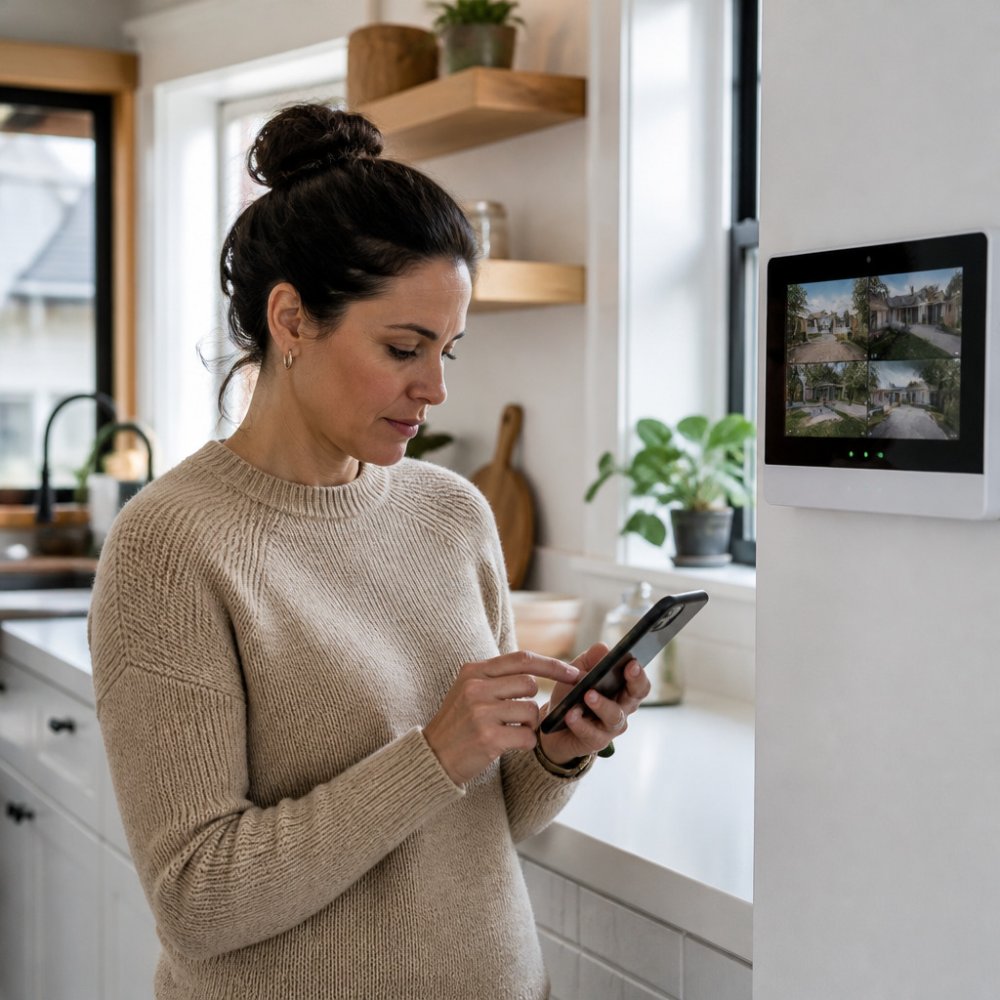
A homeowner reviewing camera settings on a phone in a kitchen is a good habit to build. Check your settings at least twice a year.
Setting Up Two-Factor Authentication for Security Cameras
Two-factor authentication (2FA) means logging in requires both your password and a second code. Even if someone steals your password, they cannot get in without that second step.
To set it up:
- Open your security app and go to account or security settings.
- Select the option to turn on two-factor authentication.
- Choose your method, such as an authenticator app or text message code.
- Save your backup codes somewhere safe, away from your phone.
- Log out and back in to confirm the code works.
An authenticator app is generally more secure than text codes, since texts can be intercepted. Turn on 2FA for your email account too, because your email can be used to reset your security app password.
Smart Home Privacy Settings to Review Today
Many smart home devices connect to your security system. Each one adds a potential entry point.
Review these settings this week:
- Remove old devices you no longer own or use
- Turn off unneeded data sharing with third-party apps
- Limit voice assistant access to security functions if you do not need them
Small steps like these close off many common attacks.
A Practical Hardening Checklist for Your Home or Shop
A checklist is only useful if you work it in the right order. Do the account and network steps first, because they close the biggest doors. Then handle devices, then review. Here is the sequence we walk customers through.
Step 1: Lock the accounts
- Change every default password on cameras, panels, and the router. Factory passwords are published online.
- Use a long, unique password for the security app, and never reuse your email password.
- Turn on two-factor authentication everywhere it is offered, starting with the security app and your email.
Step 2: Fix the network
This is where most home systems are weakest. Your cameras and panel share a router with your laptops and phones, and a compromise on one device can reach the others.
- Put smart devices on a separate network or guest Wi-Fi, apart from your computers.
- Use WPA3 if your router supports it, otherwise WPA2. Never leave the network open.
- Change the router's admin password and disable remote administration you do not use.
Step 3: Harden the devices
- Update firmware on cameras, panel, and router, and set a reminder to check quarterly.
- Turn off features you do not use, such as cloud sharing, guest access, or audio.
- Confirm your connections are encrypted. Look for HTTPS in the app's web portal and avoid logging in over public Wi-Fi.
Step 4: Tighten access for a business
- Give each employee a separate login with least-privilege permissions.
- Keep a written record of who has access and when it was last reviewed.
- Separate camera access from alarm and access-control access where the system allows it.
Step 5: Know what to do if something looks wrong
Most guides stop at prevention. You also need a plan for the day an alert looks off.
- Revoke sessions and reset credentials. Log out all devices, change the password, and re-check two-factor settings.
- Preserve the evidence. Save login alerts, screenshots of the user list, and any unusual footage before you reset anything.
- Check for unauthorized users and exports. Look for accounts you did not create and recordings that were downloaded.
- Contact your provider. Report the issue and ask what they can see on their side.
- Review and tighten. Whatever let the attacker in is still there until you close it.
Why professional setup matters here
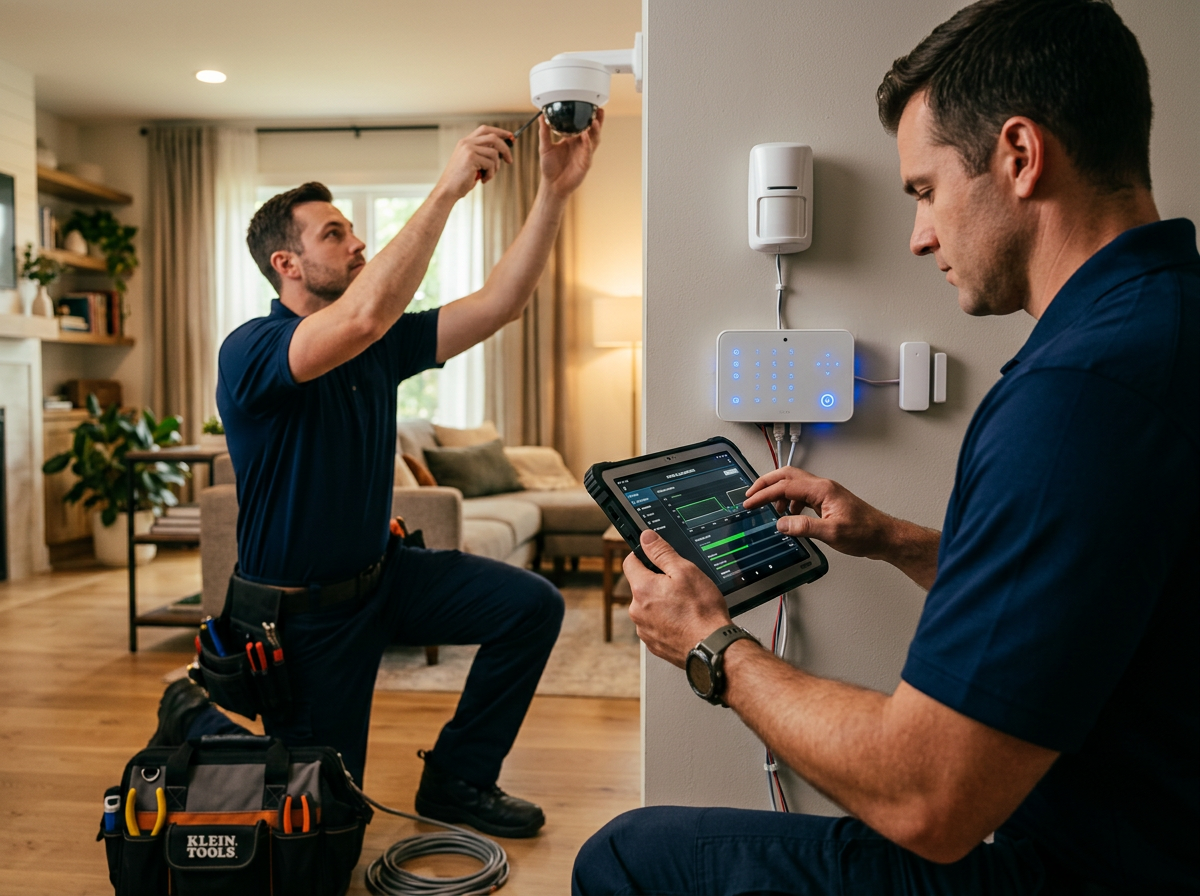
Many of these steps are easy to skip when you install a system yourself. A certified advisor can place devices, set up accounts and permissions, and configure the network so the defaults are already safe. If you want that done for you, see our about page or contact us to schedule a free assessment.
What matters is that you actually complete the steps and re-check them. A system reviewed twice a year beats a perfect checklist that was never opened.
Claim a Free Security System and Lock Down Your Access
A strong remote access plan starts with professional setup.
Right now, we are offering a free full home security system. It includes door sensors, a glass break sensor, and a 7-inch ADT Command touchscreen panel.
Call 414-793-8532 or request your free quote at protectionprosusa.com. We offer a free, no-obligation security assessment and respond within 24 hours.
*$99 Customer Installation Charge. 36-Month Monitoring Agreement required at $72.99 per month.
Frequently Asked Questions
What privacy risks come with remote access to a home security system?
The main risks are account takeover, weak or reused passwords, and video feeds viewed over unsecured Wi-Fi or shared devices. Someone with your login can see live cameras inside your home, learn your schedule, and change system settings. Protection Pros USA, your local ADT Authorized Provider through SafeStreets, helps customers set up unique credentials, multi-factor sign-in, and user permissions so only the people you choose can view or control the system.
Can someone hack a security camera through remote access?
Yes, if the camera or its account is poorly protected. Attackers often exploit default passwords, outdated firmware, or phishing emails that capture login details. Keeping firmware updated, turning on two-factor authentication, and removing old app users reduces that risk significantly. Professional installation also means the network setup is checked for weak points before the system goes live.
How can I secure remote access to my security system?
Start with a unique, long password for your security app and turn on two-factor authentication. Keep the app and camera firmware current, use a private, password-protected Wi-Fi network, and review the list of users with access every few months. Remove anyone who no longer needs access, such as a former tenant or employee. Call 414-793-8532 to have a Protection Pros USA technician review your setup.
What should I do if I think someone accessed my security system account?
Change your password immediately, sign out all devices, and turn on two-factor authentication if it is not already active. Review the event history and remove any unfamiliar users. Then contact your provider. Protection Pros USA can help verify your account, update credentials, and check that the system's settings have not been changed.