Table of Contents
- Understanding Smart Home Security Remote Access
- What You'll Need Before Getting Started
- Home Security System App Setup: Step-by-Step
- Remote Security Camera Monitoring from Your Phone
- Smart Home Security System Troubleshooting
- Security Best Practices for Remote Access
- Common Mistakes to Avoid
- Frequently Asked Questions
Last Updated: October 15, 2026
Understanding Smart Home Security Remote Access
Smart home security remote access gives you the ability to monitor and control your security system from anywhere using your smartphone or computer. This capability transforms how you protect your property, whether you're at work, traveling, or simply away from home.
At Protection Pros USA, we've helped homeowners and business owners in the Milwaukee area set up reliable remote access to their security systems.
The key benefit is peace of mind. You see what's happening at your property in real time. If an alarm triggers at 2 AM, you know immediately. You can check whether it's a genuine threat or a false alarm before emergency responders arrive.
What You'll Need Before Getting Started
Before you begin setting up smart home security remote access, gather these essentials:
- A compatible security system with remote access capability
- Smartphone or computer with internet connection
- Strong Wi-Fi network or cellular data plan
- Your system's account credentials
- The manufacturer's mobile app installed on your device
- A stable home internet connection (broadband or fiber preferred)
Many people underestimate the importance of network strength. A security camera that buffers constantly defeats the purpose of remote monitoring. Your internet speed should handle video streaming without dropping frames.
Check your Wi-Fi router placement. Position it centrally in your home, away from walls and metal objects. The farther your security devices sit from the router, the weaker the signal becomes.
Home Security System App Setup: Step-by-Step
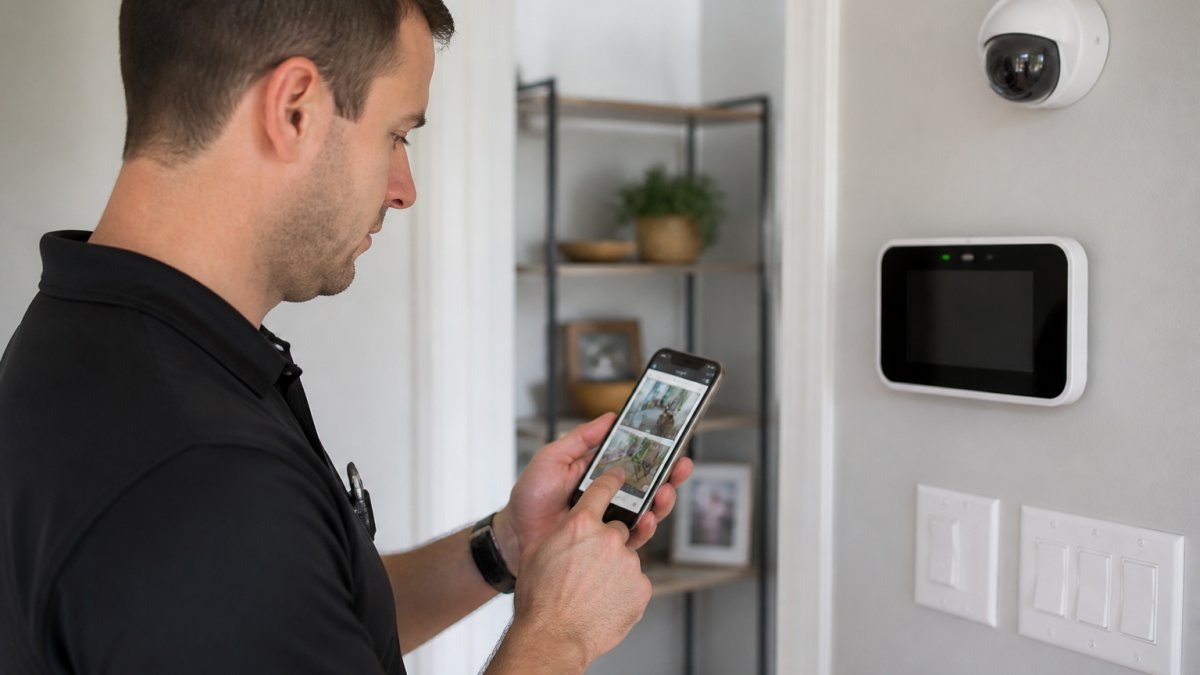
Setting up your security system app is straightforward when you follow the right sequence. Most systems follow a similar process, though specific steps vary by manufacturer.
Creating Your Account and Initial Configuration
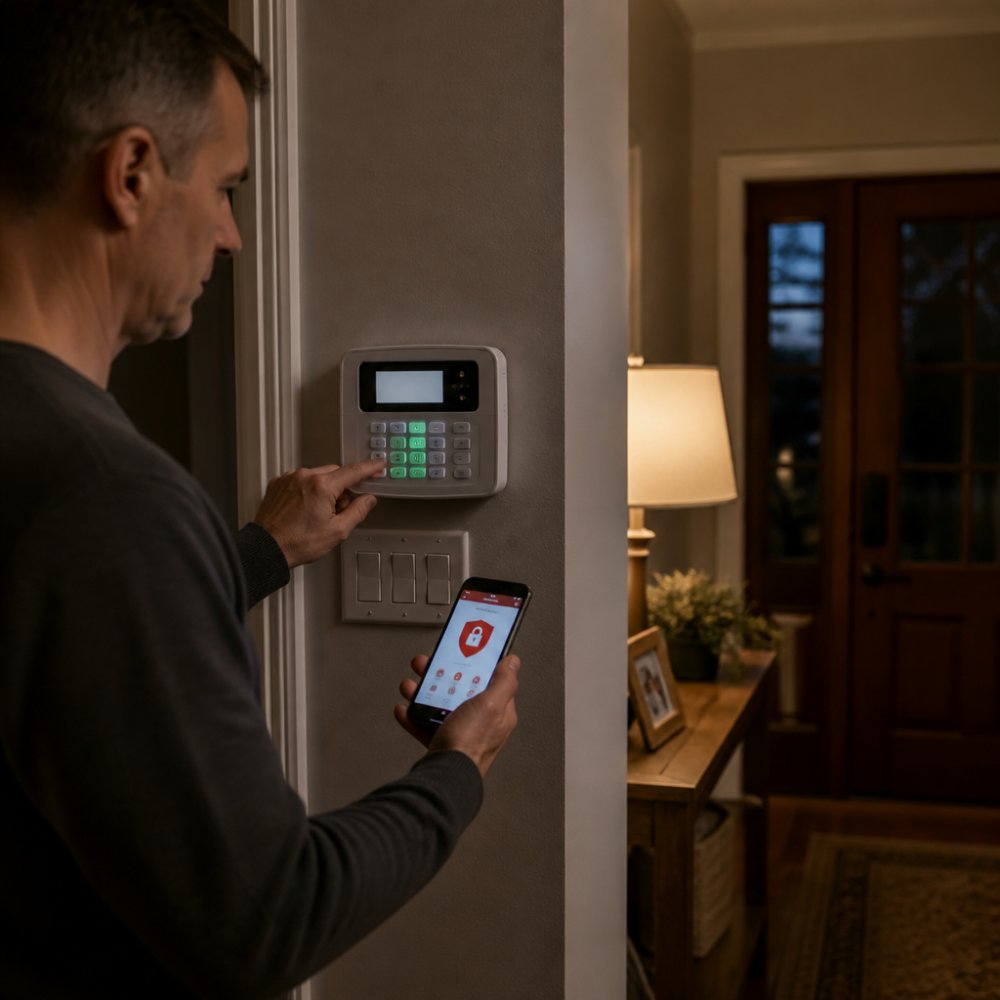
Start by downloading the official app for your security system. Search your phone's app store for your system's name, then install the app.
Open the app and select "Create Account" or "Sign Up." You'll need an email address and strong password. Use a password with at least 12 characters, mixing uppercase and lowercase letters, numbers, and symbols.
Enter your system's serial number or activation code. This code appears on your system's documentation or the device itself. The app uses this to link your account to your physical hardware.
Verify your email address through the confirmation link the app sends you. This step secures your account and ensures you receive notifications properly.
Connecting Devices to Your Network
Your security devices need to connect to your home Wi-Fi network before remote access works. Open your system's settings menu and select "Add Device" or "Network Settings."
Choose your home Wi-Fi network from the available list. Enter your Wi-Fi password exactly as it appears, these passwords are case-sensitive, so take care with uppercase and lowercase letters.
Wait for the device to connect. This typically takes 30 seconds to 2 minutes. The device's LED indicator will change color or stop blinking once connected successfully.
Repeat this process for each camera, sensor, and component in your system. Some systems allow you to add multiple devices simultaneously, while others require you to add them one at a time.
Setting User Permissions and Access Levels
Create user accounts for family members or trusted individuals who need access. Most systems let you assign different permission levels.
- Full access: Can arm, disarm, view cameras, and change settings
- View-only access: Can watch live feeds and recordings but cannot control the system
- Limited access: Can only receive alerts and view specific cameras
Assign the appropriate level to each person. A teenage family member might have view-only access, while a spouse has full access.
Test each account by logging out and signing back in with a different user's credentials. Verify that permissions work as intended.
Remote Security Camera Monitoring from Your Phone
Viewing your security cameras remotely is the most commonly used remote access feature. This section covers how to enable and optimize camera monitoring.
Enabling Live View and Recording
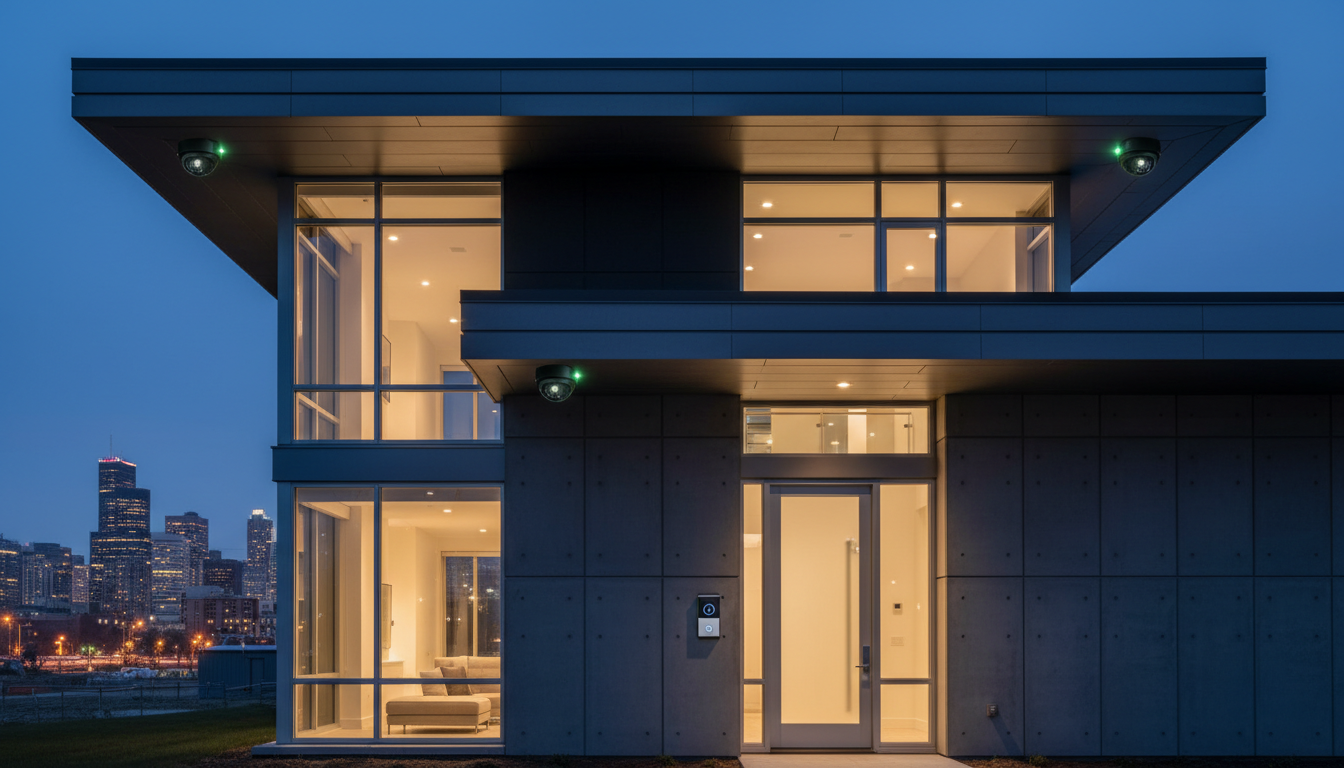
Open your security app and navigate to the camera section. Select the camera you want to view. The app will display a live feed within seconds if your connection is strong.
Most apps show a small icon indicating whether recording is active. Green means recording is on. Gray or red means recording is paused or disabled.
Enable continuous recording in your system's settings. This records 24/7, capturing everything that happens. Some systems offer motion-triggered recording instead, which saves storage space but might miss events.
Set your recording quality. Higher quality uses more storage and bandwidth. For remote viewing, 720p resolution provides clear footage without excessive data use.
Configuring Alerts and Notifications
Alerts notify you instantly when motion is detected or an alarm triggers. Open your app's notification settings.
Enable push notifications for these events:
- Motion detection
- Door or window sensor activation
- Alarm triggers
- System arm/disarm actions
- Low battery warnings
- Offline device alerts
Customize which cameras send motion alerts. If you have four cameras, you might want alerts only from the front door and driveway cameras, not the backyard camera that triggers frequently from wind-blown branches.
Set quiet hours to prevent notifications during sleep. Most apps let you disable alerts between 10 PM and 7 AM, then resume normal notifications automatically.
Test your notification settings by triggering motion in front of a camera. If you don't receive an alert within 30 seconds, check your app permissions and internet connection.
Smart Home Security System Troubleshooting
Connection problems and app issues happen to everyone. Here's how to fix the most common problems.
Fixing Connectivity Problems
If your camera shows offline in the app, start with the basics. Check that your Wi-Fi is working by opening a web browser on your phone.
Restart the camera by unplugging it for 30 seconds, then plugging it back in. Wait two minutes for it to reconnect to your network.
If the camera still won't connect, move your Wi-Fi router closer to the camera temporarily. Test whether the camera connects from a stronger signal. If it does, the original location has weak coverage.
Check your router's Wi-Fi password hasn't changed. If you recently reset your router or changed your password, your camera still has the old password stored. Remove the camera from your network in the app, then re-add it with the new password.
Resolving App Login and Authentication Issues
If you can't log into your app, verify you're using the correct email address and password. Passwords are case-sensitive, check that Caps Lock isn't accidentally on.
Reset your password if you've forgotten it. Tap "Forgot Password" on the login screen, enter your email, and follow the reset link sent to your inbox.
Check that you're using the official app from your system's manufacturer. Fake or outdated apps won't authenticate properly.
Clear your app's cache if login keeps failing despite correct credentials. On Android, go to Settings > Apps > [Your Security App] > Storage > Clear Cache. On iPhone, delete and reinstall the app.
If authentication fails immediately after installation, wait 15 minutes before trying again. Sometimes the system needs time to fully activate your account in its servers.
Camera Stream Delays and Video Quality Problems
Video delays happen when your internet connection can't keep up with the data flow. Check your internet speed using a speed test app.
Lower your video quality setting if your connection is borderline. Choose 480p or 720p instead of 1080p. The trade-off is less detail, but you'll see smooth, real-time video instead of buffering.
Reduce the number of simultaneous streams. If you're viewing three cameras at once, your bandwidth gets stretched thin. View one camera at a time for better performance.
Restart your router by unplugging it for 30 seconds. This clears temporary connection issues and often restores smooth video streaming.
Move closer to your Wi-Fi router if delays persist. Test whether video quality improves with a stronger signal. If it does, you need a better Wi-Fi network near your cameras.
Security Best Practices for Remote Access
Remote access convenience comes with security responsibility. Protect your system from unauthorized access.
Change your password every 90 days. Use a unique password you don't use for other accounts.
Enable two-factor authentication if your system offers it (Multi-Factor Authentication | NIST).
Log out of your app when using shared devices. Don't stay logged in on family computers or tablets. Log out after each use.
Review your account's login history in your app's settings. Most systems show where and when your account was accessed.
Never share your login credentials with anyone except immediate family members who need access. Each person should have their own account with appropriate permission levels.
Disable remote access temporarily if you're not using it for extended periods. This eliminates a potential attack vector while you're away from home for weeks.
Common Mistakes to Avoid
People make predictable errors when setting up remote access. Learning from these mistakes saves frustration.
Using a weak Wi-Fi password. A simple password like "password123" can be guessed in minutes.
Placing cameras in poor Wi-Fi coverage areas. A camera in a corner of your basement will struggle to maintain connection.
Ignoring app updates. Manufacturers release updates to fix security vulnerabilities and improve performance. Update your app as soon as updates become available.
Leaving default settings unchanged. Many systems come with default passwords or generic settings. Change these to match your specific needs and security preferences.
Viewing cameras on public Wi-Fi networks. Coffee shops and airports have open networks that hackers monitor.
Not testing your system after setup. Set up remote access, then wait a week before verifying it still works.
Setting up smart home security remote access provides reliable protection. Protection Pros USA specializes in professional installation and 24/7 monitoring that works seamlessly with remote access.
Frequently Asked Questions
How does remote access work with a smart home security system?
Remote access allows you to monitor and control your smart home security system from anywhere using a smartphone app or web portal. Your system connects to the internet through your home WiFi network, transmitting encrypted data to secure servers. This enables you to view live camera feeds, arm or disarm your system, receive instant alerts, and review recorded footage, all from your phone. The connection is protected through authentication and encryption to prevent unauthorized access.
What do I need to set up home security system app setup on my smartphone?
You'll need a compatible smartphone (iOS or Android), a stable internet connection, your system's account credentials, and access to your security system's control panel or hub. Download the official app from your system provider, create or log into your account, and follow the in-app setup wizard. Most systems require you to connect your control panel to your home WiFi network first. Have your system's serial number and any activation codes ready to speed up the process.
Is remote access to a home security system safe?
Yes, when properly configured. Modern smart home security systems use encryption, multi-factor authentication, and secure servers to protect your data. Security risks increase if you use weak passwords, share login credentials, connect to unsecured WiFi networks, or fail to update your app. Always use a strong, unique password, enable two-factor authentication, keep your app updated, and avoid accessing your system over public WiFi without a VPN. Professional monitoring services add an extra layer of protection by verifying alerts before dispatching help.
What should I do if my security system app stops working?
Start by checking your internet connection and restarting your smartphone. Log out of the app completely and log back in. Clear the app's cache or reinstall it if the issue persists. Verify that your system's control panel or hub is powered on and connected to WiFi. Check if your system provider has posted any service alerts or app updates. If these steps don't resolve the problem, contact your security provider's support team, they can diagnose server-side issues or help reconfigure your remote access settings.